
AI Productivity Tools: A Practical 5-App Workflow for 2026
Editorial note: This guide reflects the author’s personal workflow and is not sponsored. Time-saved estimates are illustrative, not guaranteed. Measure your own before-and-after results, including review time, and verify current product features before subscribing.
A year ago my browser carried twenty-three open tabs, three abandoned chatbot conversations, and a notes app I’d quietly stopped trusting. I was “using AI” all day and still felt buried. If you recognise that feeling, you’ve met the real problem these AI productivity tools are meant to solve the tab chaos, the copy-pasting, the sense that automation is adding work instead of removing it.
Here’s what actually turned my weeks around, and it’s almost boringly simple: the goal was never to install more software. It was to build a small, focused stack five apps, not fifty that slots into the habits I already had. This guide is the exact blueprint, the mistakes I hit, what it costs, and the order I’d set it all up in.
A practical 70/30 heuristic for human review
Most people automate the wrong end of a task, then wonder why the output feels hollow. The fix I keep returning to is the 70/30 rule. Let the machine take the first, messiest 70% of any job the researching, sorting, organising, and rough-drafting and you keep the final 30%, where the value actually lives: the judgement, the relationship, the single line a client remembers.
The day I stopped asking a chatbot to “write the whole thing” and started asking it for the first 70%, two things changed at once. The results stopped sounding robotic, and I stopped resenting the editing. If you remember nothing else from this piece, remember that split. Every app below is really just a way of automating somebody’s 70%.
| Pro tip: Write your prompts as if you’re briefing a junior teammate on the boring 70%, not commanding a genius. “Pull the three decisions from this transcript” beats “write my follow-up email.” |
Why one do-everything chatbot keeps letting you down
The most common complaint I hear is: “The writing sounds fake and I rewrite all of it.” Nearly every time, the cause is identical someone is asking a single general chatbot to do everything from a cold start, with no context.
People who genuinely save time treat AI as a small team of narrow specialists rather than one exhausted generalist. One app owns meetings. Another owns your inbox. Another owns your documents. The point isn’t to find the smartest model on the planet, it’s to never open a blank screen again. If you want a broader shortlist before committing, I keep a running roundup of the best AI tools for 2026 you can skim first.
What follows are the five places knowledge workers lose the most hours, and the apps I’d actually trust to plug each leak. Five categories, five decisions, done.
Meetings that quietly take their own notes
Potential benefit: less manual note-taking and follow-up. Measure your own total time, including review.
Meetings used to ambush my focus twice — once during the call, scrambling to type, and again afterward, rebuilding notes from memory. The cure that finally stuck was handing transcription, summaries, and action items to a silent note-taker so I could just be present in the room.
What I’d set up
- Granola: my daily driver on Mac. It runs quietly in the background with no awkward bot barging into the call, and it blends accurate transcription with the shorthand you type, so the summary sounds like your meeting rather than a robot’s.
- Fireflies.ai or tl;dv: better if your team lives in Zoom, Meet, or Teams and needs a searchable video library plus auto-sync into a CRM such as Salesforce or HubSpot.
How it plays out in real life
- Open the note-taker as the call begins. Jot only names or single-word reminders nothing more.
- When it ends, the app formats a structured summary and separates idle chat from real decisions.
- Skim the action items, fix any context, and push them into Notion, Trello, Asana, or Slack in one click.
| Pro tip: Type the important stuff as a single keyword during the call “budget,” “deadline,” “pushback.” Most note-takers weight your typed hints heavily, so the summary lands sharper. |
| Avoid this: Letting a visible bot join a sensitive client call. It changes how people talk. A background listener like Granola keeps the conversation natural. |
Speak your emails into existence instead of typing them
Potential benefit: faster first drafts for routine messages. Review every message before sending.
I think in full sentences far faster than I type them, so most of my email and Slack now begins as me talking out loud. Voice dictation some people call it “vibe typing” lets you stutter, backtrack, and think aloud while the app turns the mess into clean, structured prose.
What I’d set up
- Wispr Flow or Superwhisper: system-wide. Hold a hotkey, talk, release. It rewrites your spoken thoughts into a tidy draft while keeping your intent and tone.
- Superhuman: a premium inbox that prioritises mail, compresses a 20-email thread into three bullets, and drafts replies from a one-line prompt.
What this looks like in practice
You hit the hotkey and just say, roughly:
| “Hey John, saw your email. Yes to the Thursday kickoff, but 2 PM is too early with the timezone gap, let’s do 4 PM. Also tell Sarah to bring the latest pitch deck so we can review live. Thanks.” |
Seconds later you’ve got a clean draft:
| Subject: Re: Project Kickoff Meeting: Hi John,Thanks for reaching out. Thursday works for the kickoff. Because of the timezone difference, though, 2:00 PM is a little early on our side. could we push it to 4:00 PM?Also, please ask Sarah to bring the latest pitch-deck drafts so we can review them together on the call. Best, [Your Name] |
| Pro tip: Dictate the ugly first pass, then read it aloud once before sending. Your ear catches the two lines that still sound like a robot fix those and it’s indistinguishable from hand-typed. |
Turn your files into a second brain you can talk to
Potential benefit: faster source retrieval and document comparison. Verify answers against the cited source.
The slowest part of my old workflow was never the work itself, it was finding things. Buried PDFs, dead Slack threads, a bookmark graveyard. A personal knowledge base fixed that: upload your documents, then ask questions and get sourced answers instead of digging for twenty minutes.
What I’d set up
- NotebookLM: free, from Google, and the one I recommend first. Drop in research papers, PDFs, Google Docs, even YouTube transcripts, and it answers using only your sources, with clickable citations back to the exact page.
- Recall: auto-summarises and links the articles, videos, and podcasts you consume, so your past reading becomes searchable. It pairs neatly with Notion AI if your team already works inside Notion.
A real task, start to finish
Say you’re up against a 100-page competitor report and five internal specs:
- Drop all six files into a single NotebookLM notebook.
- Ask: “Where are the gaps in the competitor’s pricing versus our planned features?”
- Get a clean comparison in seconds, every point linked to the exact source page, no skimming a hundred pages by hand.
| Pro tip: Keep one “evergreen” notebook for your own brand positioning docs, past proposals, brand voice notes. Then every draft you generate starts already sounding like you. |
Hand your calendar the keys
Potential benefit: less manual calendar rebuilding. Keep control of deadlines and protected time.
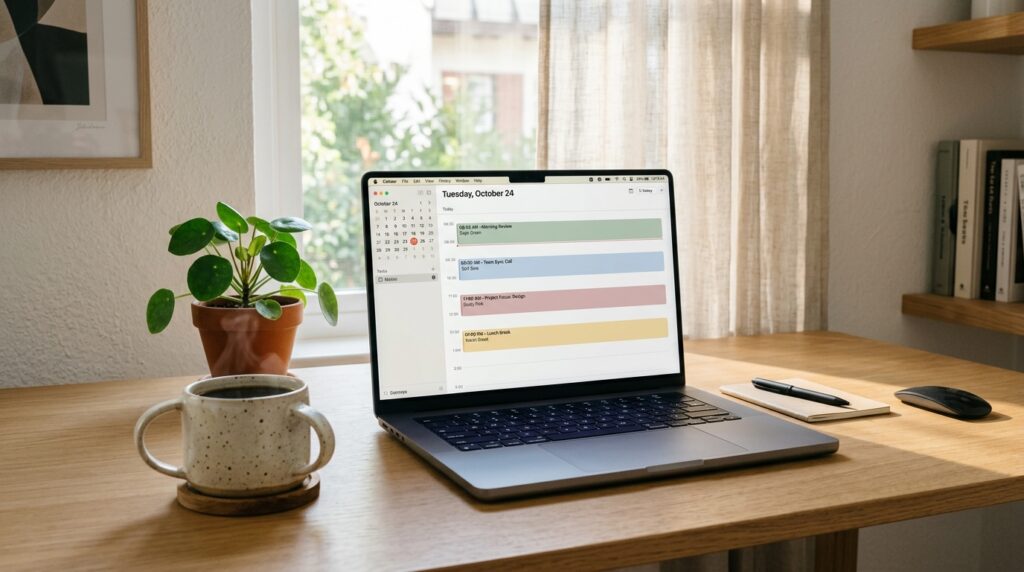
Manually time-blocking, then re-blocking every time a meeting lands on your focus hour, is a quiet daily tax. Smart schedulers treat your calendar as a living puzzle and shuffle the pieces for you in real time.
What I’d set up
- Motion: feed it tasks, durations, and deadlines, and it auto-slots the work into your open calendar gaps.
- Reclaim.ai: guards recurring habits (deep work, lunch, learning) on Google Calendar and shifts them automatically when a priority meeting muscles in.
My favourite moment with these: a client drops an emergency call onto my focus block, and instead of me rebuilding the day, the scheduler quietly bumps the non-urgent tasks forward and keeps every deadline intact.
| Avoid this: Handing the scheduler every tiny two-minute task. It clutters the calendar and buries the work that matters. Only auto-schedule things that genuinely need a protected block. |
Wire your apps together and delete the busywork
Potential benefit: fewer repetitive transfers between approved apps. Test failures and keep a human approval step.
Copy-pasting is the leak nobody notices, because each instance feels trivial. Moving a contact from an email into a CRM. Dropping a transcript line into Slack. No-code automation lets you describe the workflow in plain English once, then let it run forever.
What I’d set up
- Make.com: a visual, drag-and-drop builder for connecting thousands of apps into multi-step flows. This is where I’d start.
- Gumloop: newer, built for non-technical folks to spin up agents that scrape, analyse, and run batch jobs.
- Zapier: the original, with an enormous app library and conversational automation building.
A flow worth stealing
- Trigger: a meeting ends.
- Step 1: your note-taker generates a summary.
- Step 2: Make.com isolates the action items and creates Trello or Notion cards.
- Step 3: a follow-up email lands in your Gmail drafts, ready for one human read and a click.
If you run a small team or a solo business, this is where the compounding really begins, I go deeper on it in my guide to AI tools for entrepreneurs.

How to choose the right AI productivity tools for you
The stack that saves me time might not be yours. Before you copy it wholesale, run each app through five quick filters. This is the part most “best tools” lists skip, and it’s the part that decides whether an app sticks or gets abandoned by Friday.
- Does it remove a step, or add one? If a tool needs three new habits to save one, it’s a net loss. Be ruthless.
- Does it live where you already work? A note-taker you have to remember to open is a note-taker you’ll forget. Prefer the ones that run in the background.
- Is your data safe? For anything confidential, check for private-by-default handling, and enterprise options like SOC 2 or GDPR compliance.
- Can it connect outward? A tool that exports cleanly into Slack, Notion, or your CRM is worth more than a smarter tool trapped on an island.
- Would you miss it after a week? Trial one app at a time for seven days. If removing it hurts, keep it. If you forget it exists, drop it.
Run those five questions and you’ll build a lean set of AI productivity tools that fit your actual day, instead of a graveyard of half-used subscriptions.
The minimalist stack side by side and what it costs
Here’s the whole stack on one screen. Save it, screenshot it, and build it one row at a time.
| Workflow | Primary tool | Why it earns its place | Rough cost |
|---|---|---|---|
| Meetings & notes | Granola | Runs locally; pulls action items with no intrusive bot. | Free tier; ~$18/mo Pro |
| Email & writing | Wispr Flow / Superhuman | Speak naturally; get clean, structured copy back. | ~$12–$30/mo |
| Research & docs | NotebookLM | Chat with your private files, with citations. | Free |
| Time management | Motion / Reclaim | Reschedules tasks around your calendar automatically. | Free tier; ~$10–$34/mo |
| App connections | Make.com / Zapier | Ends manual copy-pasting between platforms. | Free tier; ~$9+/mo |
The honest cost picture: several tools may offer free plans or trials, but limits and eligibility change. Verify each official pricing page on the publication date, then pay only when measured value exceeds the full cost. For most people that’s the meeting note-taker and the scheduler.
Five mistakes that quietly waste the time you just saved
- Installing everything on Monday. The fastest route to failure. One tool a week, or the learning curve eats all your savings.
- Chasing the smartest model instead of the right fit. A narrow tool that runs where you work beats a genius app you keep forgetting to open.
- Skipping the human 30%. Never send the raw output. The final read is what keeps your voice and your reputation intact.
- Ignoring data settings. Check what each tool does with your uploads before you feed it anything confidential.
- Never deleting anything. Subscriptions pile up. Every quarter, cancel the tools you forgot you had.
FAQ’s
Which AI productivity tool is best for daily work?
For general daily use, a premium plan of ChatGPT or Claude is still the best all-rounder for brainstorming, writing, and coding. But for specific jobs a focused app wins every time Granola for meetings, Superhuman for email, Motion for scheduling. The best AI productivity tools are usually the narrow ones.
How do I automate admin tasks without coding?
Start with a visual platform like Zapier or Make.com. Set a trigger say, a new client email then chain actions that extract the details with AI and drop them into Google Sheets or your CRM. No code required.
Are these apps safe for confidential business data?
It depends on the provider, account type, configuration, and data. Review current privacy, retention, training, deletion, subprocessor, and security documentation before uploading confidential material. A certification is one input to vendor review, not proof that every use is safe.
How should I measure time saved by AI tools?
Results vary. Record the time required before and after each workflow, including setup, corrections, and review. Keep only tools that improve the completed outcome—not merely the speed of generating a draft.
How much should I budget to start?
Start by checking the current free plans or trials on each provider’s official pricing page; availability and limits change. Upgrade only after measuring whether a tool saves more review-adjusted time or money than it costs.
Will AI-written emails sound robotic to clients?
Only if you send the raw output. Dictate the draft, then read it aloud once and fix the two lines that sound stiff. That thirty-second human pass is the whole difference between “obviously AI” and “sounds like you.”
Your first three weeks, one tool at a time
The quickest way to fail at this is to adopt everything at once. Tool fatigue wins whenever the effort of learning new software outweighs the time it saves. So go slow on purpose:
- Week 1: set up a meeting assistant (Granola or Fireflies). Get used to being fully present on calls without typing.
- Week 2: add dictation (Wispr Flow) for your daily Slack and email.
- Week 3: wire two of your tools together with one lightweight automation.
Build it one row of that table at a time, and within a month you’ll have a stack that quietly protects your best hours for the work that actually matters. That’s the entire promise of a well-chosen set of AI productivity tools not doing more, but doing the important part with your attention fully intact.
| Keep going → Want the full shortlist before you build? Read my roundup of the best AI tools for 2026, then grab my guide to AI tools for entrepreneurs to turn this stack into a real money-saver.Which tool will you set up first? Pick one today and let the other four wait until next week. |
Download the AI Ad Poster Prompt Pack
Want a faster way to create ad-poster concepts with AI? Get the prompt pack, adapt the instructions to your product or campaign, and review every generated claim, image, and brand detail before publishing.
Sources and update note
- Google NotebookLM Help
- Granola security and privacy documentation
- Zapier AI product information
- Make AI automation product information
Product features, limits and pricing change. Verify official pages before purchasing. Last fact-checked: August 10, 2026.
About The Author





Ótimo artigo! O Claude Fable 5 em / tem sido útil em fluxos parecidos. Claude Fable 5
Thank you, I’m also using it in my workflow especially in software development and it really helps me.
Bom conteúdo. Recomendo AI Hotel Lobby — /. AI Hotel Lobby